Jump to content


Photo

Sixteen custom colors for Charts and Accents


  • Please log in to reply
1 reply to this topic

#1 Virginia Blakelock

Virginia Blakelock
  • Moderators
  • 2,794 posts
  • Gender:Female
  • Location:Yellow Springs

Posted 14 February 2009 - 08:05 AM

16colors.png

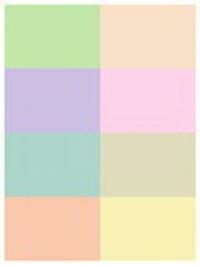
The 'VCF palette' is handy for quick coloring little charts, but box and line colors can often be more conveniently set in the chart definition screen using the Color Lookup Table (CLUT) or with the VCF option to use the accent colors which are active in the project. The colors in the standard CLUT can, however, appear garish in accents and charts. It is easy to create and save in TMG up to 16 custom colors.

Once the custom colors are set up in either the VCF report options or Accent color lookup table in TMG, those colors are available for use in both the accents and in the settings in the chart definition options. You can lighten or darken them in the CLUT as you prefer while still retaining the base color. For example, I would use a darker shade for box lines, a lighter shade of the same color for fill or accent.

*Note that TMG and the VCF chart editor have separate color lookup tables. Custom colors added to the TMG color lookup table are saved for use in TMG for accents and in VCF chart options. When you are editing a chart in VCF after you have created it, any custom colors added to that program's color lookup table are not saved from one chart to the next. The 'VCF palette' was devised as a way to 'save' custom colors in the VCF chart editor.

I have assembled a group of custom colors in a VCF chart - see screenshot above - which you can download (save to your computer), unzip and open in VCF. You will want to print it out so you will know how the colors will look from your printer.

Attached File  16Palette_1_.zip   2.06K   62 downloads

VIDEO tutorial is here. The instructions to accompany the video tutorial are below:

To add custom colors to the Color Lookup Table:

- Click in the first box in the custom color row.
- Cursor to the Red box and backspace over those numbers.
- Enter first number in the Red box.
- Tab to the Green box and enter the second number.
- Tab to the Blue box and enter the third number.
- Click on 'Add to Custom Colors'.

- Click in the second box in the custom color row.
- Repeat above.

After each color is saved remember to click in the next empty box in the custom color row before starting a new color.

Virginia
Win7 Professional x64

#2 GenerationGoneBy

GenerationGoneBy
  • Senior Members
  • 886 posts
  • Gender:Female

Posted 14 February 2009 - 11:25 AM

Is there a way to pin this post so I don't have to search for it when I need it later. Not working much on genealogy these days, but hope to have time soon.


0 user(s) are reading this topic

0 members, 0 guests, 0 anonymous users